One of the nice features in The Agency Advantage is the ability to
export reports into Excel. However, the Export function
was restricted by the fact that Microsoft Excel 2000 had to be installed. In
order to eliminate this restriction, the Export function has been modified to
export *.csv files. The *.csv extension means "Comma
Separated Value." CSV is a generic format that may be used with any version of Excel. The following tutorial
will walk you through the steps to export data from AA and into
Excel.
First, let's run a report in The Agency Advantage. We'll use
the Customer Listing for our example. If the Export button is
grayed out on the toolbar, then we currently do not have an Export
function for that report.
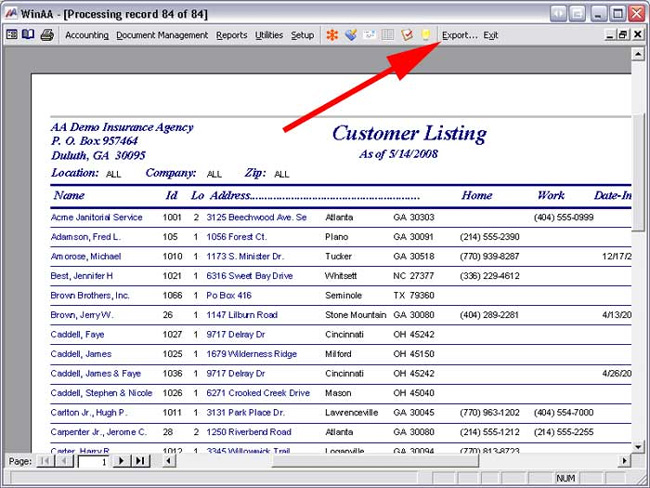
Once you click the Export button, a dialog box will appear, choose where you would like to save the file and what name you will give it.
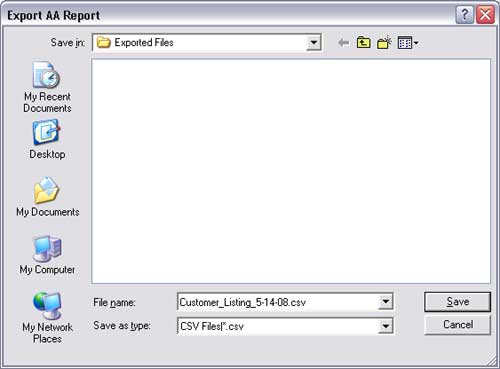
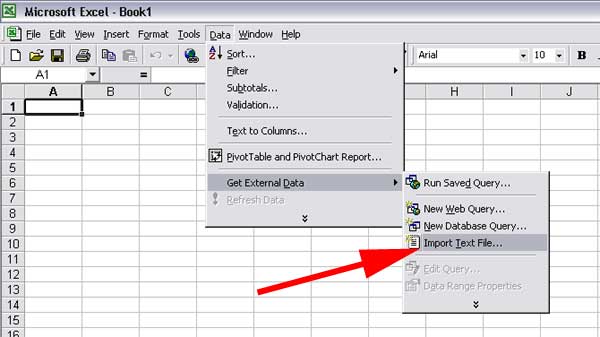
After you save the file, open the Excel program, and navigate to
the Import Text File option as shown.
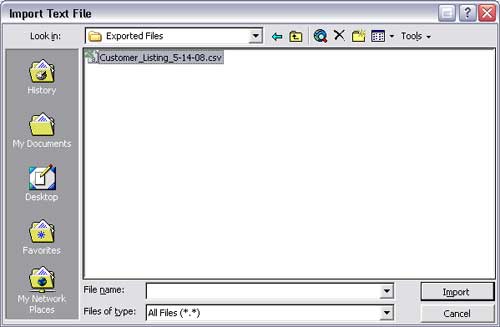
The Import Text File dialog box will appear.
Select the file you just exported out of AA.
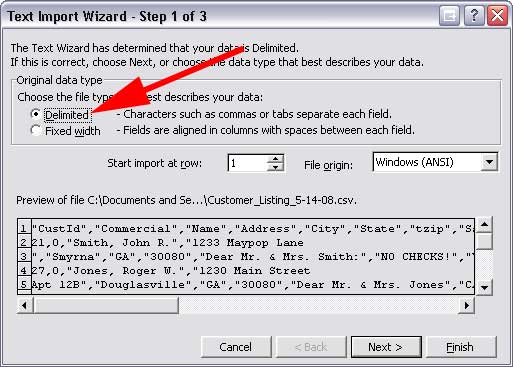
Next, you will be guided through the import process with a Text
Import Wizard. Make sure "Delimited" is selected in the first step
then choose Next.
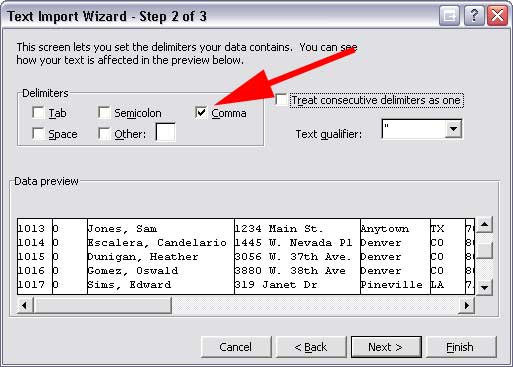
In step 2 choose "Comma" as the delimiter and click
Next.
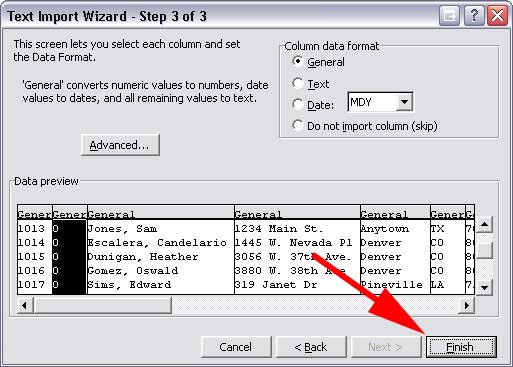
You now have the option of formatting the fields.
This may or may not be necessary depending on the data you are
Exporting. You can always format the fields after the data is
imported. Click Finish.
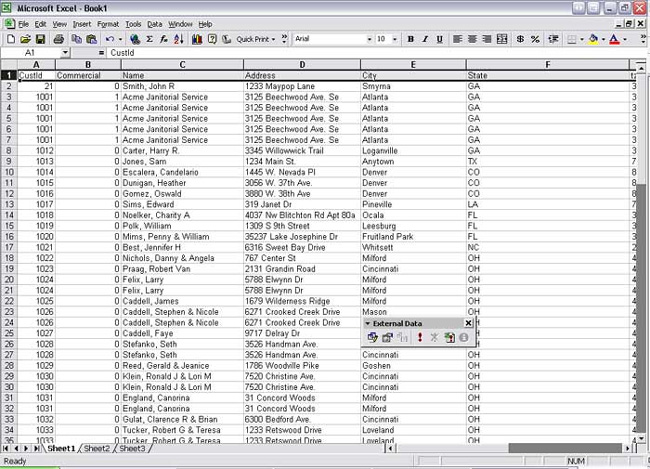
You should now see the data as it was imported
into Excel. You can sort, rearrange, or add more data as needed to
suit your agency's needs.
Written by: Tina Stewart
Back